Missing Assets
When files of a project have moved, the Locate Missing Files dialog helps you point Pano2VR to their new location.
If files used by a project can’t be found when you open it, for example because you moved or renamed a folder, Pano2VR opens the Locate Missing Files dialog. It lists every missing file with the node it belongs to (or Master Node for files used by the whole project), the kind of file, and its path. To open the dialog yourself, choose File > Relocate Missing Files; if no files are missing, Pano2VR tells you so.
To point Pano2VR to a file’s new location:
- Double-click the file in the list.
- Locate the file and click Open. For a missing folder, choose the folder instead.
- If other missing files are in the same folder, Pano2VR asks whether to use that folder for them too. Click Yes to relocate them all at once.
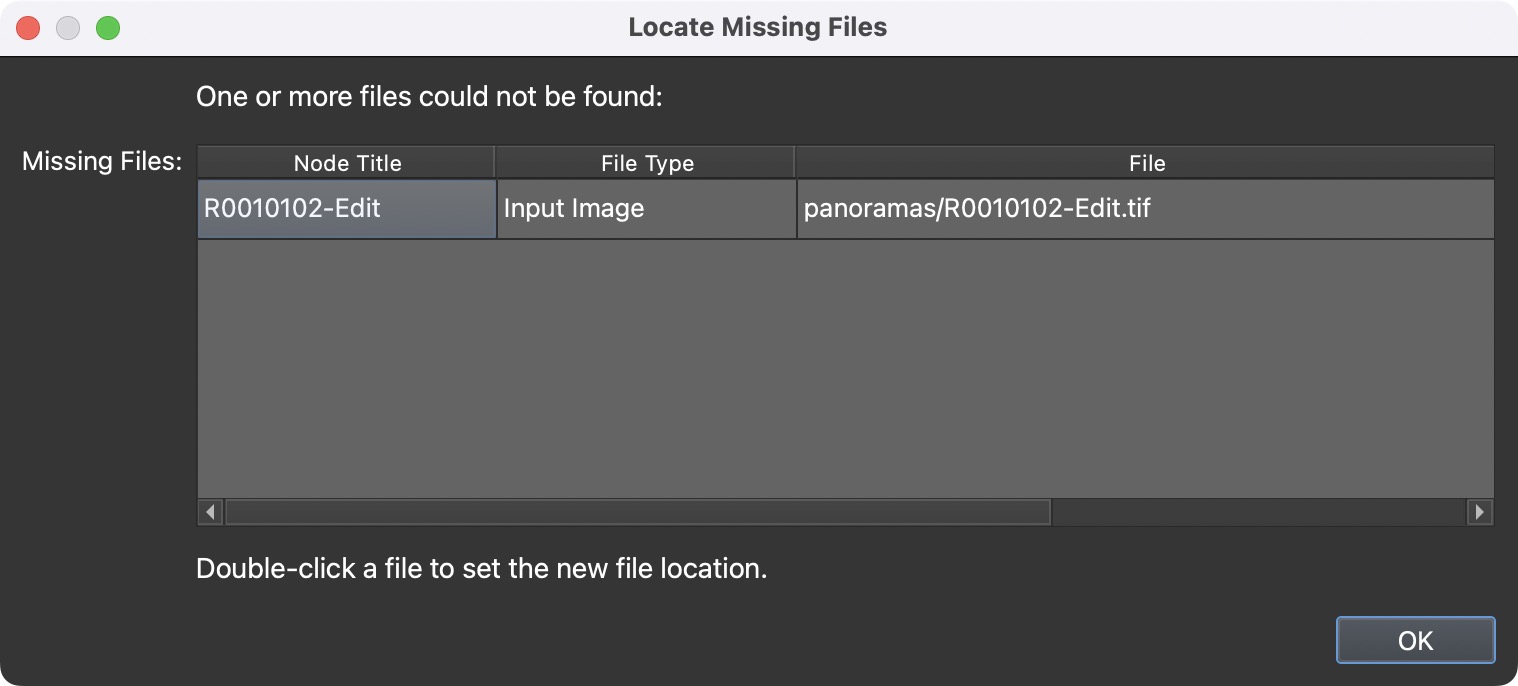
Relocated files disappear from the list, and the dialog closes by itself once all files have been found. Click OK to close it earlier and keep working with the files that are still missing. Relocating files changes the project, so you can undo it and you need to save the project to keep the new paths.
For a Gaussian splat model that is set to use an optimized input file, the list includes the optimized splat file (.rad) when it’s
missing.