Gnome Cloud Browser
The Gnome Cloud is our service for hosting your tours. The Cloud Browser lists the projects in your cloud account, with their views and size, and lets you open, share, connect, or delete them.
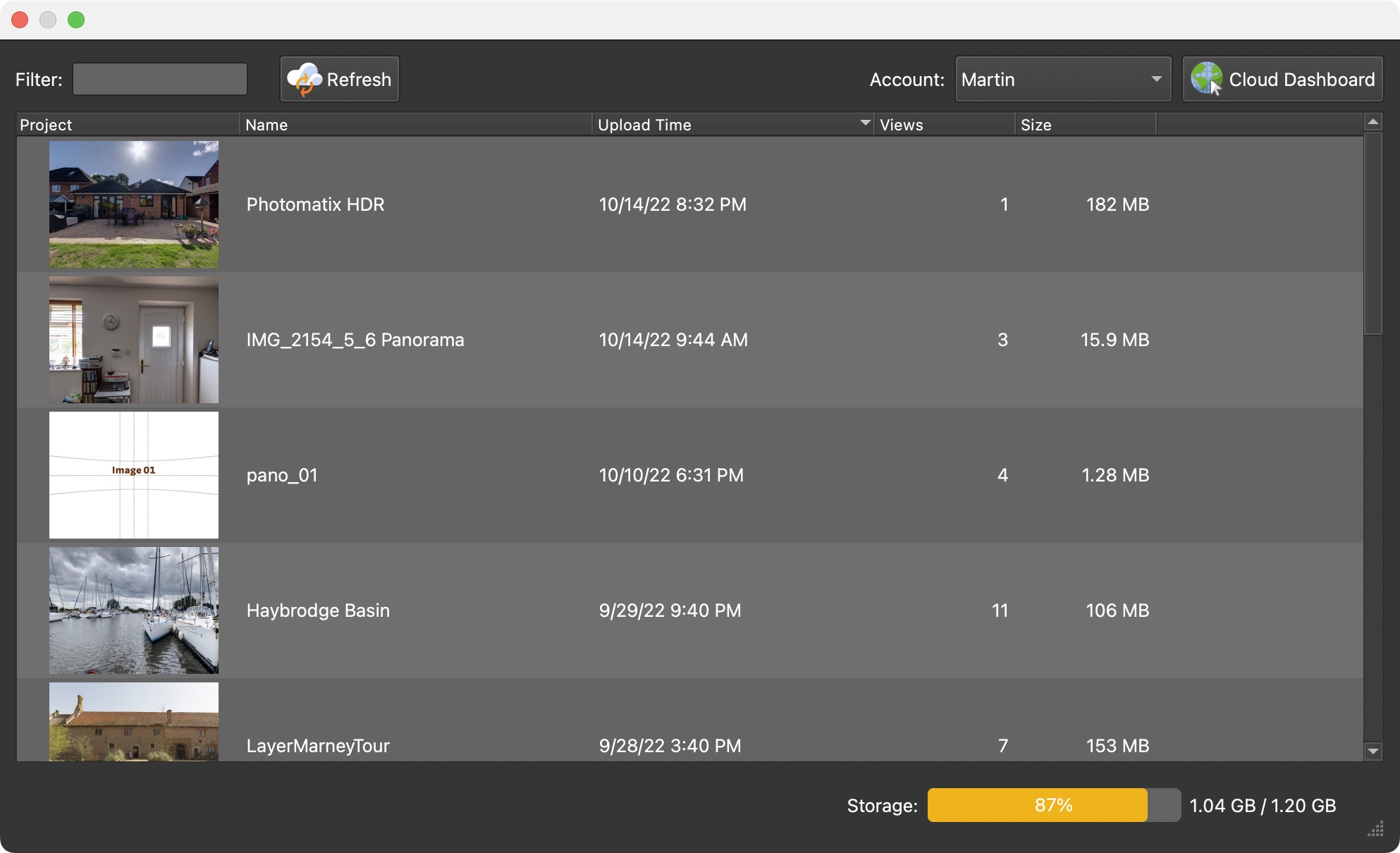
Open the Cloud Browser from the Toolbar or choose Cloud > Cloud Browser. If you aren’t logged in to the Gnome Cloud yet, the login dialog opens first; see Cloud in the menu bar. The Cloud Browser stays open while you work, and remembers its position and size.
Filter – Type to show only the projects whose name contains the text.
Refresh – The button next to the filter reloads the list from the Gnome Cloud, with the current views, size, storage, and tokens.
Account – If you have access to more than one cloud account, choose the account whose projects you want to see.
Cloud Dashboard – Opens the Cloud Dashboard in your web browser, where you can manage your account and portfolio.
Project List
Each project is listed with its thumbnail (Project), Name, Upload Time, Views, and Size. Hover over the views or size to see the traffic of the last month and in total. Click a column header to sort the list by that column; by default, the newest uploads are on top.
Double-click a project to open it in your web browser. Right-click a project to bring up a shortcut menu:
- Open in Browser – Opens the project in your web browser.
- Share – Shows the project’s link, the code to embed it in a web page, and a QR code, ready to copy or save.
- Delete – Deletes the project from your cloud account, after asking you to confirm.
- Connect to current Project – Connects the project open in Pano2VR to this cloud project, so your next upload updates it instead of creating a new one. Available when the open project isn’t connected to a cloud project yet.
- Disconnect from Project – Removes that connection again.
Status Bar
The bottom of the window shows the connection status, the number of Tokens in the account, and Storage: how much of your storage you’re using. The bar turns yellow above 80% and red above 90%. When the storage is full, uploads are refused until you delete a project or purchase more storage.