Toolbar
The Toolbar at the top of the main project window adds panoramas, shows and hides panels, searches the project, opens the help for any control, and starts the Skin Editor, the Cloud Browser, and Quick Share.

The Toolbar runs along the top of the main project window. Most of its buttons show or hide a panel; a highlighted button means the panel is open. Panels can be rearranged freely, see Layout Customization. Select Small icons on the Advanced tab of the Settings for a more compact Toolbar.
Input
Click Input to add panoramas to the project. You can also drag panoramas onto the Viewer or the Tour Browser to add them.
Edit
These buttons show or hide the panels you use to build a tour:
-
Tour Browser (Pano2VR Pro only)
View
These buttons show or hide panels with information about the project:
Find in Project and Help
Two buttons sit between the View and Tools groups:
-
Find in Project – Click the magnifying glass to search the whole project for text and, optionally, replace it.
-
Click for Help – Turns the pointer into a help pointer. The next control you click isn’t operated; instead, its documentation page opens in your browser, at the section for that control where there is one. Press Esc (Escape) to leave the help mode without opening a page. The Skin Editor has the same button in its toolbar.
You can also press F1 at any time to open the documentation for the control that currently has the keyboard focus. This works in dialogs and floating panels too.
Tools
-
Skin Editor – Opens the Skin Editor to design the controls and look of your tour.
-
Cloud Browser – Opens the Gnome Cloud Browser.
-
Quick Share – Writes a single image of the node you’re viewing, either a whole panorama with the metadata social platforms need or a plain photo of the current view. While Quick Share is set to skip its dialog, the button shows a small arrow: click and hold it to open the Quick Share settings.
Shortcut Menu
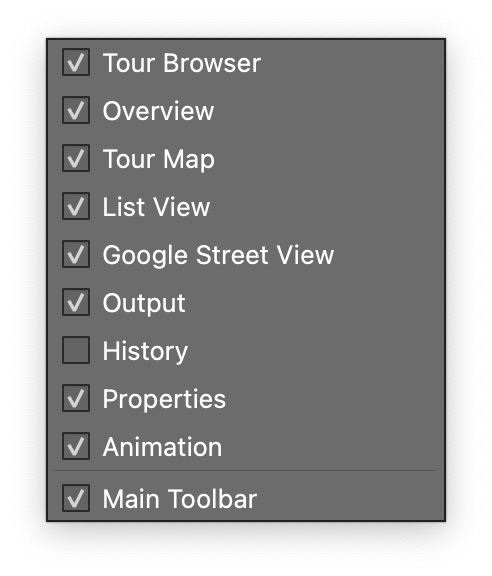
Right-click the Toolbar or any panel’s title bar (Control-click on macOS) to open a menu that lists the panels and the Toolbar itself. Choose a panel to show or hide it, or choose Main Tool Bar to hide or show the Toolbar.