Generate an Alternative Sound File
Alternative audio files can be converted from within the Sound Mode's properties.
-
With the sound selected open the Properties panel if not already opened.
-
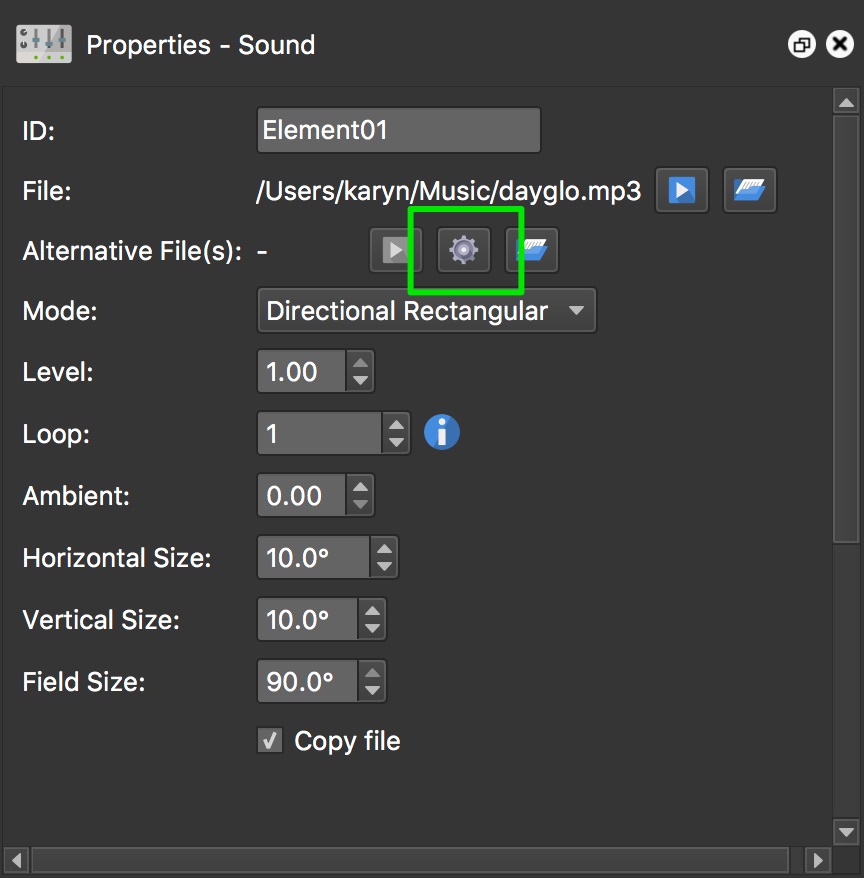
For the Alternative File setting, click the gear icon to open the converter.
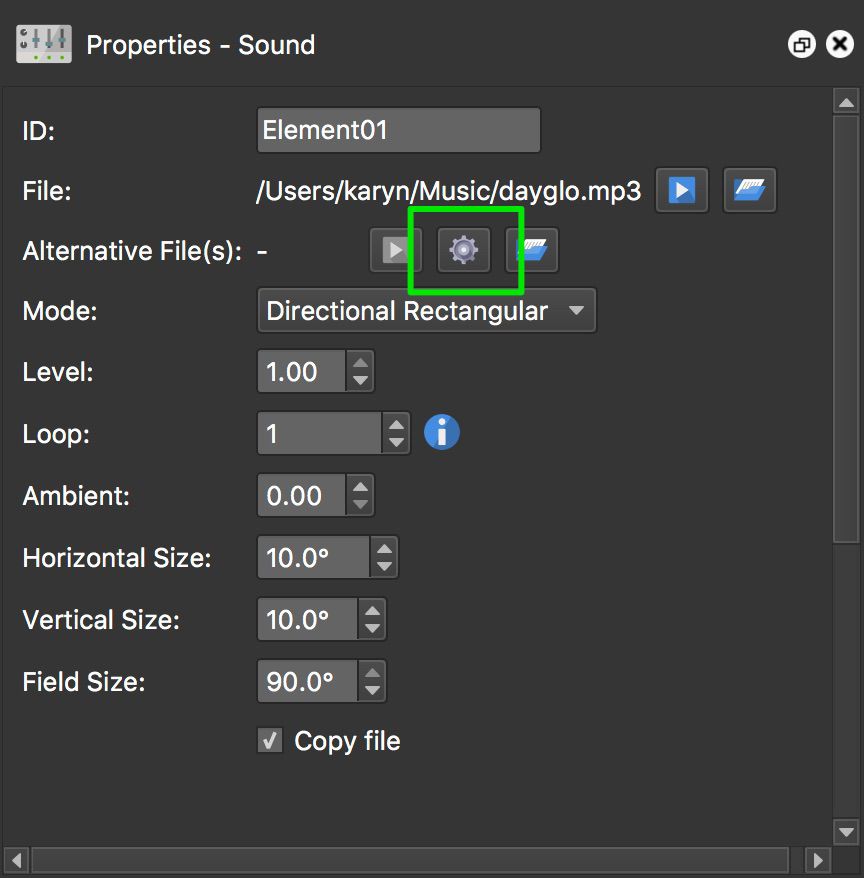
Click the gear icon to open the converter. ★ Tip If the gear icon is unavailable, add a source file or choose a system on which the Qt media backend supports an audio output format. -
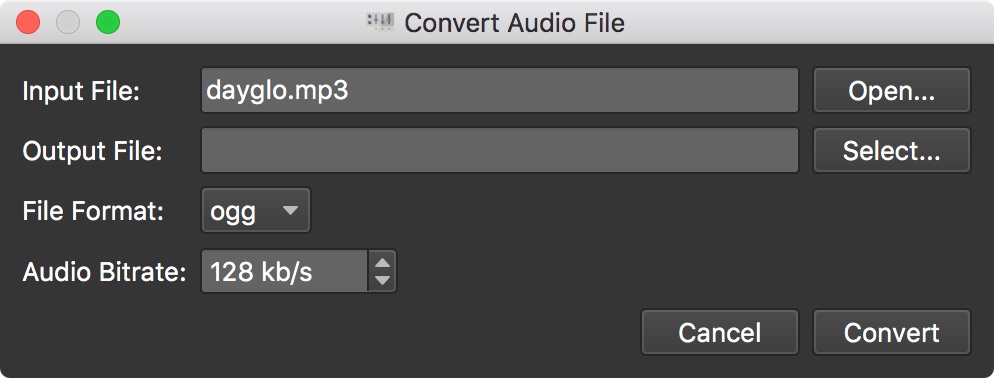
The Output File is prefilled with a unique name based on the input file. Click Select to choose a different output folder or filename. Changing the file format also changes the filename extension.
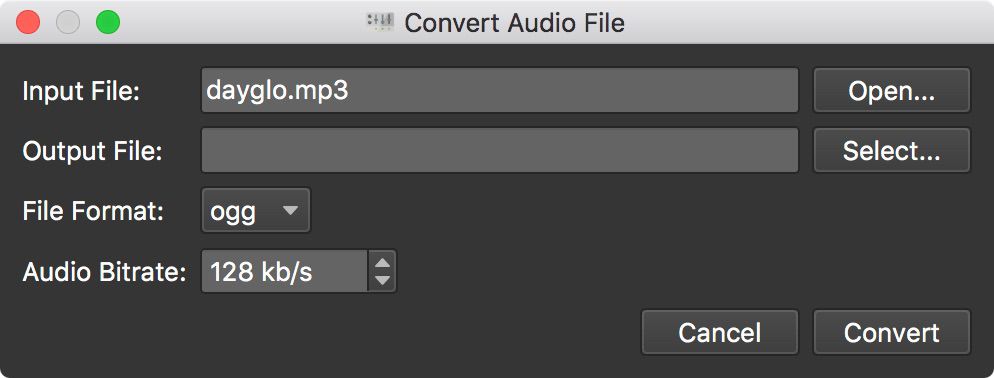
Convert Audio File dialog -
Select a file and codec combination supported by the current computer.
-
Change the bitrate, if necessary. The audio bitrate can be raised to 192 kb/s but will produce a larger file.
-
Click, Convert. The generated file appears in the Alternative Files list when conversion is complete.