Polygon Hotspot Properties
Here you'll find the properties for the polygon hotspots which are found in the Properties panel once a hotspot is added or selected.
The hotspot properties are found in the Properties Panel and will appear once a hotspot is added or selected.
Other settings, like hiding the hotspots, are found in the Web Output Settings.
Switch to Master Node – This button appears only when the selected hotspot comes from the tour’s master node while another node is open in the Viewer. Click it to switch to the master node.ID
The ID of the Hotspot which can be used in the Skin Editor.
If the ID is already assigned to another hotspot in the same node, a warning icon appears next to the field. Click the warning icon to generate a unique ID.
Type
Choose what the hotspot does. What you choose here affects the Link Target URL below.
URL – Opens a website or a file, for example https://www.example.com.
Skin Proxy – The hotspot does nothing by itself. Instead, skin elements whose Proxy ID matches the hotspot react to its mouse events, for example to show a popup.
Title
Add the title of the hotspot here. The title appears, for example as a tooltip, when the pointer is over the hotspot.
If the hotspot type is Tour Node, you can choose between a custom title and the title of the linked node (User Data Title of the target node).Description
Enter a description of the hotspot here.
Link Target URL
The options here will depend on the Type chosen.
-
URL – Enter the web address or the path of the file.
-
Tour Node – Choose a node from the menu. Click the green arrow (Follow Hotspot Link) to open the linked node; this button is only available with a Pro license. Alternatively, drag in a tour node from the Tour Browser on to the polygon hotspot.
Target
Add a target to specify where to open the website (or panorama).
If Tour Node is selected as Type, click the bullseye icon to orient the opening view of the next panorama. The menu then offers the same Enter Target, Forward, and Backward options as point hotspots. Click the copy button to copy the target to all Tour Node point hotspots in the project.
324.0/-3.5/70.0. This overrides the default view of the target node.Color
Choose how this polygon hotspot looks in the output.
-
Use Default – Select to use the colors and line width set for all polygon hotspots in the web output properties. Deselect it to set them for this hotspot only.
-
Background and Border – Click a color well to choose the fill color and the color of the outline.
-
Line Width – The width of the outline in pixels, from 0.5 to 50. The default is 1.
The Viewer draws polygon hotspots in its own Viewer Colors, so these settings show only in the output.
Custom Properties
If your project needs more properties, you can add them as custom properties. Click the plus button to add a new custom property. A dialog will appear where you can define the parameters:
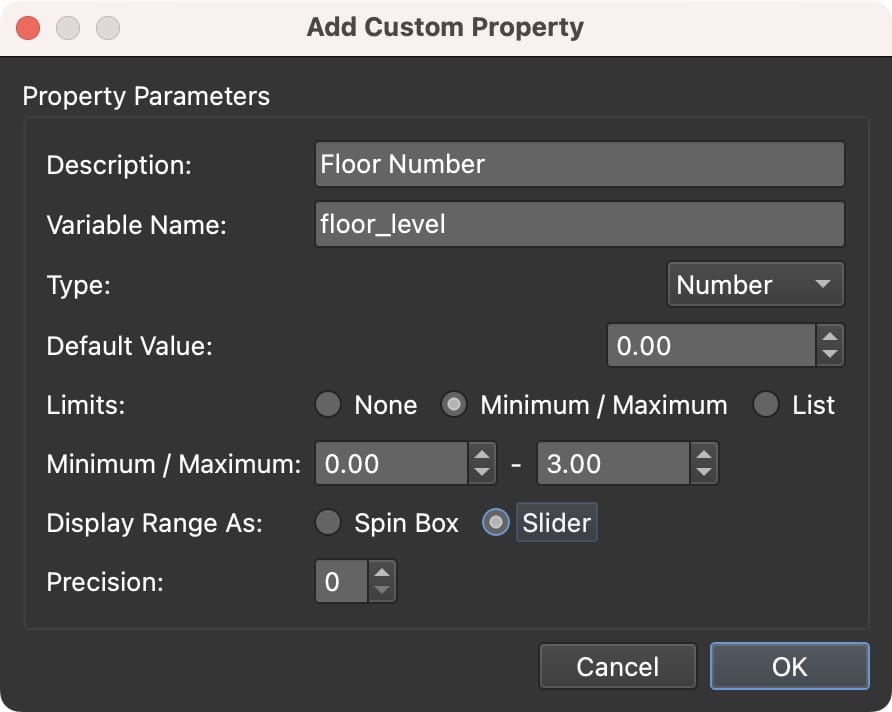
A custom property is a variable that can be used in the skin. For Type, choose from Text, Number, or True/False.
For each type, you can control how the variable is displayed by setting Limits:
- None – No limits. For Text, this gives a single text field. For Numbers, an editable number chooser. For True/False, a dropdown list.
- Maximum/Minimum – Set a range for number variables. Enter the minimum and maximum values, and choose to display the range as a number chooser (Spin Box) or as a Slider. Use Precision to set the number of decimal places.
- List – Create a list of options as key-value pairs. For example, Key =
1, Value =Hello; Key =2, Value =World. You can display the list as a Dropdown (combo box), a Color Combo Box (use Hex color codes for the Key), or as radio buttons (multiple choice).
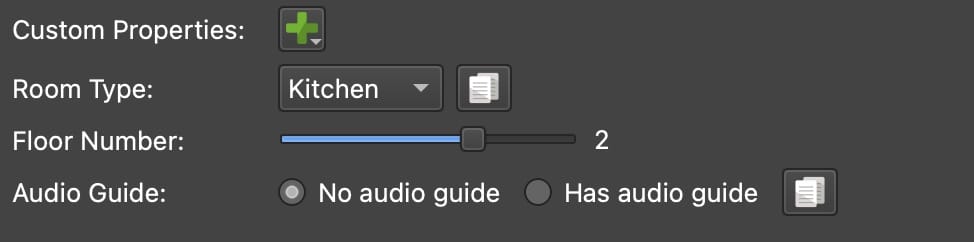
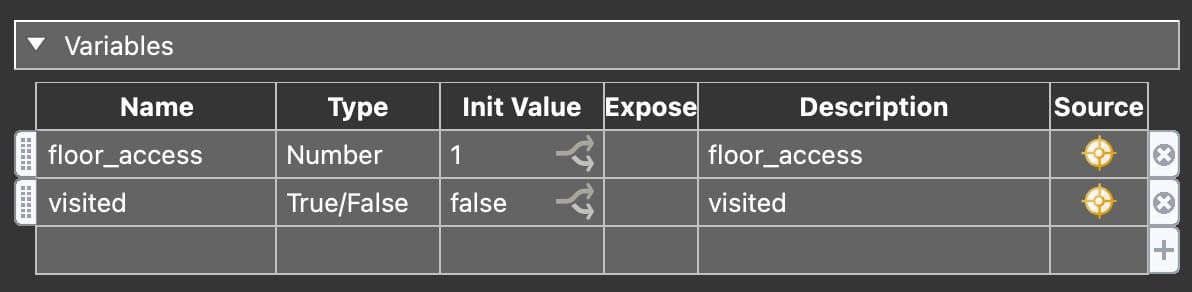
When you open a skin from the Web Output, any custom properties created here will be added as variables in the skin properties.
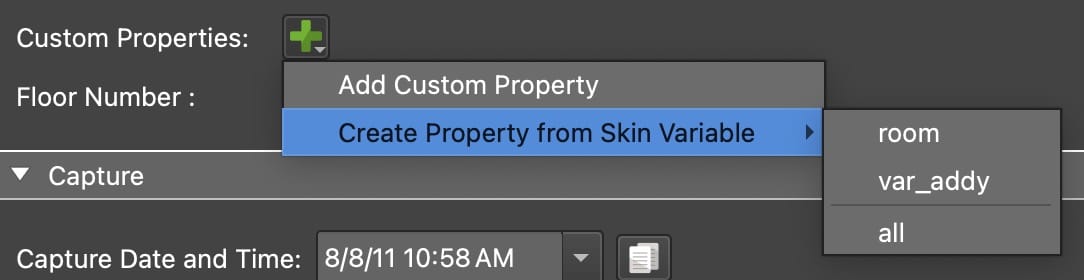
You can also create a custom property from an existing
skin variable. Long press the
plus button to create a custom property from a skin variable.
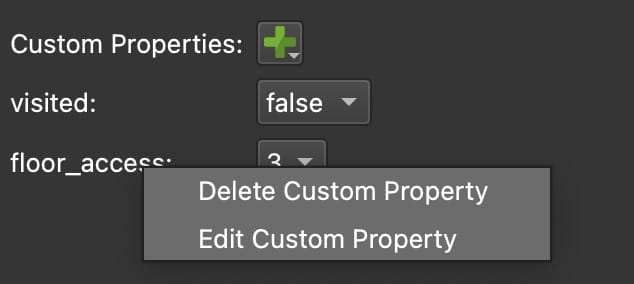
Right-click the label of a custom property to edit or delete the property.
Learn how to add custom properties.