Generate an Alternative Video File
An alternative video file can be converted from within the Video Mode's properties.
-
With the video selected, open the Properties panel if not already opened.
-
For Alternative File, click the gear icon to open the converter.
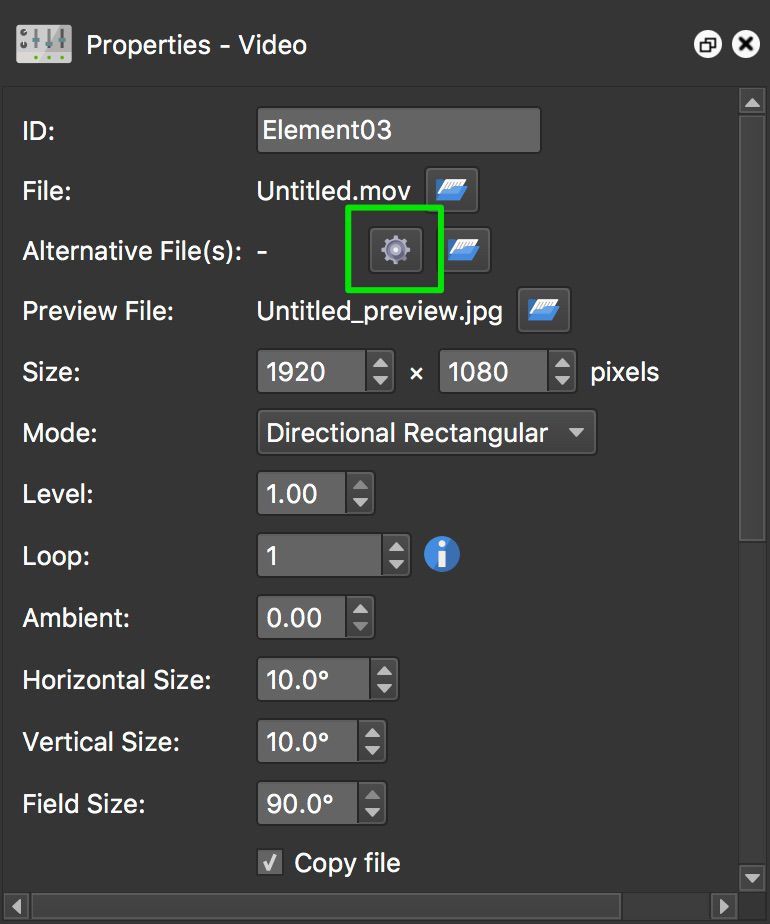
Click the gear icon to open the converter. -
In the Convert Video File dialog, input file path will be populated. But if this needs to be changed, click Open.
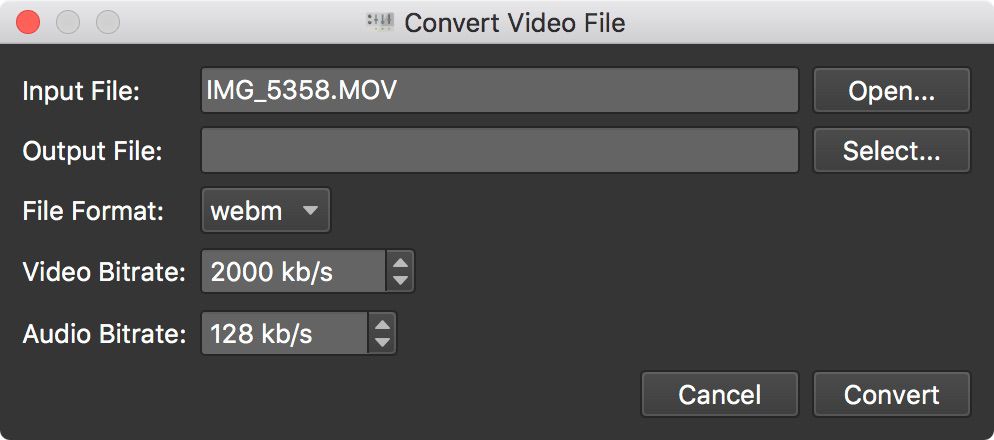
Convert Video File dialog -
The Output File is prefilled with a unique name based on the input file, such as
video - 1.mp4. Click Select to choose a different output folder or filename. Changing the file format also changes the filename extension. -
Select one of the file and codec combinations supported by the current computer.
-
Choose a video size. The standard presets preserve the aspect ratio, do not enlarge smaller videos, and select a suitable video bitrate. Video panorama alternatives default to 4K. Original keeps the source dimensions.
-
The video and audio bitrate fields show the values selected by the preset and cannot be changed. Choose Custom to enter an exact width and height and to edit both bitrates. A warning appears when either custom dimension is not divisible by 8; click it to align the dimensions automatically.
-
Click, Convert. The generated file appears in the Alternative Files list when conversion is complete.
Note: MP4 does not require dimensions divisible by 8, 16, or 32. Divisibility by 8 is recommended here for compatibility with common video encoders and hardware decoders.